I’m not going to be the webinar host forever! And sometimes, even I need a reminder.
So: how do you run a webinar?
Before the Webinar
Step 1: Get it Scheduled
Try to do this with as much advance notice as possible. Ideally, at least 2 weeks before, so that email messaging can go out for the event.
- Get a speaker lined up and committed to a date / time
- Make sure Outreach has
- Presentation abstract
- Speaker bio
- Date and time of webinar
Date / Time
We traditionally have aimed for the 3rd or 4th Wednesday of the month at noon. But that’s not set in stone! If the presenter prefers something else, we can absolutely adjust.
Step 2: Forum Post
The Topic
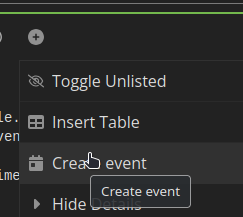
Create a new topic for the webinar. Use the “create event” option for the topic to be listed in the forum’s “upcoming events” page.
The Invite
Create an invite code. (If your user is unable to create invites, please ask a moderator to give you proper permissions.)
One of the options in the invite is to tie it to a specific post. Associate the invite with the webinar topic.
Keep the invite code handy.
Step 3: Make some Slides
There are usually four slides you will show as the webinar host, but two of them never change:
- The “ILGISA Webinar Series” title slide
- A QR code for the webinar call for content
- An announcement slide about some upcoming event [1]
- A QR code for feedback on the webinar
Feedback QR Code
Currently, we solicit feedback using a Survey123 form. Responses come in to this dashboard here:
There’s also a link in the dashboard to create a new session entry, in order to collect the feedback.
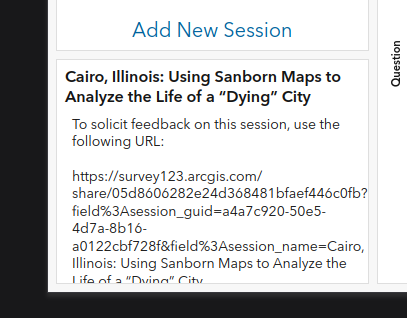
When you create the new entry, a separate details panel (pictured above) generates a link for soliciting feedback. This can be fed into a QR generator to get the code to put into a slide.
Aside: personally, I’m not a huge fan of this method, as it requires asking someone with access to the ILGISA AGOL account to do something. Maybe we nix it in the future, just encourage feedback on the forum itself?
Step 4: Speaker Check-In and “Sound Check”
The week before the webinar, reach out to your presenter. Encourage them to find 5-10 minutes to hop on the webinar link before the actual day of the presentation. This lets them test the interface, screen sharing, etc., in a no-risk setting.
NOTE: Since the Ring Central link is also used for board and committee meetings, be sure that you don’t schedule the sound check for a time when people are using the “room”.
Even if the speaker opts not to test things out, ask them to be on the webinar about 15 minutes before the scheduled time. If they not already a member of the ILGISA forum, share the invite code you created up above. If they are willing to join the forum, their webinar topic can be a space to have extended discussion, share slides, and answer questions.
Day of Webinar
Just Before
- Log on 15 minutes before the webinar starts
- Megan from CM Services will show up to make you and the webinar presenter moderators, so you will have access to mute folks, start the recording, etc.
- Put the Webinar Series title slide up [2]
- Around the scheduled start time, greet folks. Hang on for a couple of minutes before starting, though, as people tend to come in a couple minutes late
- As a moderator, you can mute all users by default if you wish, to avoid having to track down noisemakers during the presentation
Showtime
- Welcome people to the ILGISA Webinar series
- Introduce yourself
- Ask folks to submit content to the webinar, show that slide
- If any announcements, show that slide
- Remind folks to use the chat window to post questions for the speaker
- Tell people that they are invited to continue asking questions and having discussion on the ILGISA forum as well, and share the invite code URL in the chat.
- Post any URLs you shared as QR codes into the chat
- Introduce the speaker. You can say their name and who they are affiliated with, but let them handle their own bio.
- PRESS RECORD
- Mute yourself, let the speaker speak
Closing Up
As the speaker winds down, start fielding questions posted to the chat window, if any. Be prepared to ask a question or two yourself in case nobody in the audience has anything to say.
Once questions have run out, you can show the QR / URL for feedback. It may also be a good opportunity to bring up the forum again, and put the invite code out there for folks.
Thank the speaker for their time, and the audience for theirs. Wish them well, and that’s a wrap!
There is no way to stop the recording. It will stop once all attendees have left the call. Some attendees may have left the webinar up in the background. Go ahead and manually boot everybody from the room, then leave it yourself.
Later
Speaker Followup
Everybody likes a good thank-you note. Reach out to the speaker in the days following the webinar and thank them again for their presentation.
If anyone left relevant feedback, please share the feedback with them in that message as well.
Post Links
Once the recording is put online, post a link to the recording in the webinar forum topic. If the speaker has made their slides available, you can post them as well.
This can be a future webinar, the next in-person ILGISA event, or even a non-ILGISA thing that may be worth our members’ attention. You can also skip this slide, if you don’t have anything particularly noteworthy to mention.4. ↩︎
You can do this any way you like. I’ve made my slides as images or PDFs and just done a simple slideshow, then shared that specific window in the webinar. ↩︎